
Sale Transaction
Below is a code snippet for the Sale request when processing a transaction
What is a Sale?
A sale is a transaction between two or more parties that involves the exchange of tangible or intangible goods, services, or other assets for money. In some cases, assets other than cash are paid to a seller.
In the case of this implementation the Sale transaction refers to the customer paying the goods or services received by means of tapping or inserting their bank card into the payment device.
Note:An auth token must exist before a payment can be requested.
If a Sale is requested and no auth code exists in the request then the Ecentric Payment app will automatically initiate the authorisation process before payment can begin.
The below diagram shows a high level view of the transaction flow:
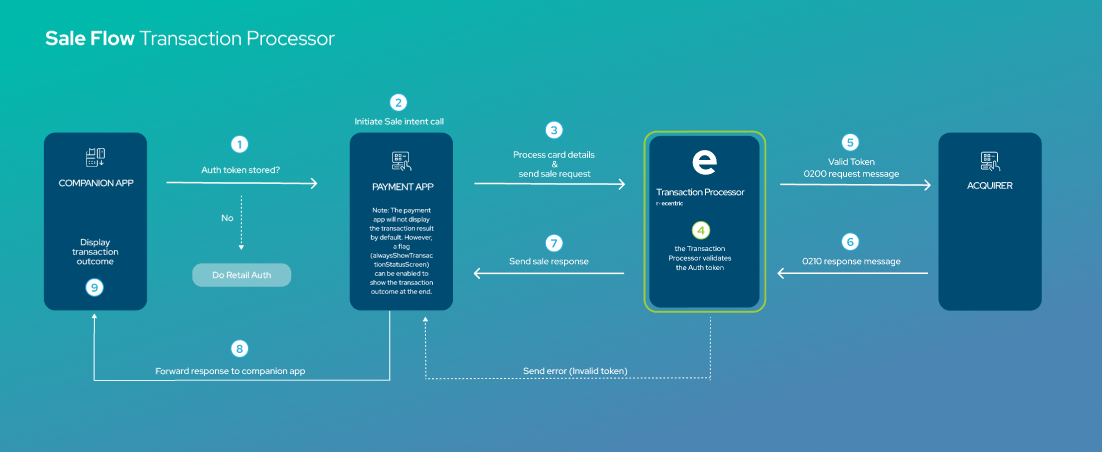
Sale transaction flow
Description:
Step 1:
When a sale transaction is initiated on the 3rd party party app, the first in processing the transaction is to check if an Authentication token is available in the request.
- If there is an Auth token available then the transaction will continue as per normal.
- If there no Auth token available then the 3rd party app will automatically initiate a "Retail Auth - validation" request and only once the Auth token has been returned successfully will the app continue to the normal sale transaction flow.
Step 2:
The Ecentric payment app will then initiate the Sale request and forward the request to Ecentric Backend.
Step 3:
The Ecentric Payment app will process the card details and forward the request to Ecentric Backend
Step 4:
The Ecentric backend will the validate the Auth token in the request.
NOTE: If the token is invalidated, the Backend will return an "invalid auth token" error back to the payment app and the transaction will be aborted.
Step 5:
The ecentric backend send a 0200 financial message to the Acquirer.
Step 6:
The Acquirer will the perform the necessary checks in order to validate and process the transaction.
Once the validation of the transaction has been performed, the Acquirer will then send a 0210 financial message to Ecentric backend which contains the transaction outcome.
Step 7:
Ecentric backend will return the transaction response to the Ecentric payment app.
Step 8:
The ecentric payment app will then forward the transaction outcome to the 3rd party app.
Step 9:
The 3rd party app will display the transaction outcome to the customer.
Payment requests allow 3rd party applications to integrate card processing into their applications.
To process a card payment, 3rd party developers must launch the Ecentric Payment app via an Android Intent scheme and then process the response intent data to understand if the transaction succeeded or failed.
Sale request
The below code must be used by 3rd party apps to invoke the Ecentric payment app in their code.
private String appURL = "payment.thumbzup.com";
private String appClass = "payment.thumbzup.com.IntentActivity";

Intent intent = new Intent();
intent.setClassName(appURL, appClass);

Bundle dataBundle = new Bundle();
dataBundle.putString("launchType", "SALE");
dataBundle.putString("merchantID", "910100000000001"); //provided by the onboarding team
dataBundle.putString("authenticationKey", "c282cdd3-59d2-42ff-8c96-826725a27e6e");
dataBundle.putLong("transactionAmount", 10000); // in cents
dataBundle.putString("transactionUuid", " 491321f4-c900-40a0-b5fa-4d8c0d7a91b7"); // UUID Version 4

intent.putExtra("thumbzupBundle", dataBundle);

startActivityForResult(intent, 0);
private String appURL = "payment.thumbzup.com";
private String appClass = "payment.thumbzup.com.IntentActivity";
Intent intent = new Intent();
intent.setClassName(appURL, appClass);
Bundle dataBundle = new Bundle();
dataBundle.putString("launchType", "SALE");
dataBundle.putString("merchantID", "910100000000001"); //provided by the onboarding team
dataBundle.putString("authenticationKey", "c282cdd3-59d2-42ff-8c96-826725a27e6e");
dataBundle.putLong("transactionAmount", 10000); // in cents
dataBundle.putString("transactionUuid", " 491321f4-c900-40a0-b5fa-4d8c0d7a91b7");// UUID Version 4
dataBundle.putString("merchantName", "Payfacname * ".concat(shopName)); // merchant store name NB: The asterisk must appear in the 4th, 8th, or 13th character position, spaces are counted as characters. i.e. 4th position i.e. "Cla*sh Melrose Arch"
dataBundle.putString("merchantCity", "Johannesburg"); // Sub-Merchant's City
dataBundle.putString("merchantRegionCode", "GP"; // Sub-Merchant's Region Code
dataBundle.putString("merchantCountryCode", "ZA"); // Sub-Merchant's Country Code
dataBundle.putString("merchantCategoryCode", "4891"); // Sub-Merchant's MCC NB: It is essential that this field is populated accurately, as incorrect MCC assignment per merchant may result in penalties.
/*
The 'additionalData' object allows the 3rd party application to pass data fields
of any type to the server.
This 'additionalData' object is NOT interrogated or used by the Payment app itself,
but only passes the object through to the server.
Below shows examples of how the 'additionalData' field can be used to pass a
'merchantInfo' object and a 'subMid' field to the server.
*/
JSONObject additionalData = new JSONObject();
try {
// The 'merchantInfo' object is MANDATORY for PayFacs for all transactions
JSONObject merchantInfo = new JSONObject();
merchantInfo.put("Street", "cnr Von Willich Ave &, Leonie St);
merchantInfo.put("City", "Johannesburg");
merchantInfo.put("Province", "GP");
merchantInfo.put("Country_Code", "ZA");
merchantInfo.put("Currency_Code", "710");
merchantInfo.put("Postal_Code", "0157");
additionalData.put("Merchant_Info", merchantInfo);
// AN6022 requires a Sub Merchant ID field to be included.
additionalData.put("subMid", "574595612358745");
// Add the above to the intent bundle
dataBundle.putString("additionalData", additionalData.toString());
} catch (JSONException e) {
e.printStackTrace();
}
intent.putExtra("thumbzupBundle", dataBundle);
startActivityForResult(intent, 0); The below code snippet is used for additional data fields based on the preference of the Merchant.
Please contact our support team should you require assistance with the below
dataBundle.putString("customerName", "My Favorite Customer"); // 40 character limit
dataBundle.putString("transactionReferenceNo", "ref#123456"); // 10 character limit
dataBundle.putString("transactionDescription", "3rd party app desc"); // 30 character limit
//
dataBundle.putBoolean("isReceiptRequired", true);
dataBundle.putString("cellNumberToSMSReceipt", "0123456789"); // 15 character limit
dataBundle.putString("emailAddressToSendReceipt", "[email protected]"); // 50 character limitdataBundle.putInt("externalSTAN", 123456); // 6 character limit
dataBundle.putString("externalRRN", "ABCDEF123456"); // 12 character limit
dataBundle.putString("externalTransactionGUID", "2fdca02f-3cbe-4e8c-82ad-86a1a16b72e8");
dataBundle.putString("externalInvoiceGUID", "2fdca02f-3cbe-4e8c-82ad-86a1a16b72e9");
dataBundle.putString("externalTerminalId", "98100010"); // 8 character limit
dataBundle.putString("externalTransactionDateTime", "2017-04-28T09:30:00");// if true, the Thumbzup will display the transaction response instead of the Point of Sale app.
dataBundle.putBoolean("alwaysShowTransactionStatusScreen", false); // Ecentric's Tokenization Vault Solution is scheme specific
try {
JSONObject tokenization = new JSONObject();
tokenization.put("MerchantUserID", "1");
additionalData.put("Tokenization", tokenization);
} catch (JSONException e) {
e.printStackTrace();
}Input request Parameters
The table below describes the input parameters that must be provided for a payment request.
| Parameter | Applies to | Description |
|---|---|---|
| launchType | All | Must be “SALE” (however “PAYMENT” is still supported) Used for launching the Ecentric Payment app to process a payment. |
| applicationKey | All | The 3rd party API key that will be issued by Ecentric specific for every 3rd party application |
| authenticationKey | All | The authentication token that was generated by the server on a successful login to the Ecentric Payment app |
| merchantName | All | The specific user name that with the appropriate role to transact via a Companion app with the Ecentric Payment app PayFac: The store name of the sub-merchant. i.e. Payfacname * ".concat(shopName)) 4th position i.e. "Cla*sh Melrose Arch" NB: The asterisk must appear in the 4th, 8th, or 13th character position, spaces are counted as characters. |
| merchantCity | PayFac | The city where the sub-merchant's store is located. |
| merchantRegionCode | PayFac | The region code where sub-merchant’s store is located. Must be the Alpha value for the region i.e GP for Gauteng |
| merchantCountryCode | PayFac | The country code where sub-merchant's store is located. |
| merchantCategoryCode | PayFac | The category code of the sub-merchant's. 4-digit numeric code that identifies the type of business or service a sub-merchant provides. i.e 4891 NB: It is essential that this field is populated accurately, as incorrect MCC assignment per merchant may result in penalties. |
| merchantUsername | All | The specific user name that with the appropriate role to transact via a Companion app with the Ecentric Payment app |
| customerName | All | The name of the customer that will be making payment using the Ecentric Payment app |
| transactionAmount | All | The amount to be charged in cents (long) |
| transactionDescription | All | Reference number for the merchant’s records |
| transactionReferenceNo | All | Reference number field that also appears in a merchant portal when available. |
| cellNumberToSMSReceipt | All | 10-digit cell phone number for receipt SMS destination. Can be blank. NOTE: If isReceiptRequired is true then this is a mandatory field. |
| emailAddressToSendReceipt | All | Valid email address for receipt email destination. Can be blank. NOTE: If isReceiptRequired is true then this is a mandatory field. |
| isReceiptRequired | All | If set to true, at least one of the receipt parameters above needs to be set. If set to false the user will not be prompted to send a receipt after payment using the Ecentric Payment app. NOTE: According to VISA and Mastercard requirements, this must always be set to true unless the app developer is providing an alternative means to send a receipt |
| alwaysShowTransactionStatusScreen | All | Once the Ecentric Payment app has processed a transaction there is a status screen that shows the success/failure of processing. Set this flag to true if you would like this displayed otherwise false to hide it. Default is false. |
| deviceIMEI | All | The IMEI number of the Payment Blade. This is absent when using a SUNMI. |
| externalSTAN | All | An optional systems trace number generated by some 3rd party ERP systems |
| externalRRN | All | An optional RRN generated by some 3rd party ERP systems |
| externalTransactionGUID | All | An optional GUID that identifies a specific transaction generated by 3rd party ERP systems |
| externalInvoiceGUID | All | An optional GUID that identifies a particular invoice that may appear on more than one transaction |
| externalTransactionDateTime | All | An optional date and time the transaction was generated on the 3rd party ERP systems. Has the format of “yyyy-MM-dd'T'HH:mm:ss” |
| externalTerminalId | All | An optional terminal identifier for device configured on the 3rd party ERP system |
| latitude | All | An optional geolocation identifier indicating the latitude position of the device |
| longitude | All | An optional geolocation identifier indicating the longitude position of the device |
| accuracy | All | An optional accuracy indicator of the geolocation |
| transactionUuid | All | Unique ID provided from 3rd party integrators. Format: UUID version 4 Note: If the field was not populated by the 3rd party integrator a system generated transaction UUID will be assign for every new transaction. |
When values are submitted in the request which exceed the maximum input capacity, the intent request is halted, and the appropriate message is handed back to the POS application.
Some examples of common field lengths are as follows:
| Parameter | Characteristics | Error message when exceeded |
|---|---|---|
| transactionAmount | Maximum numeric only value is 9,999,999.99 | Transaction Amount is not valid |
| transactionReferenceNumber | Maximum of 10 alphanumeric characters | Invoice Number is too long, must be a maximum of 10 in length |
| transactionDescription | Maximum of 30 alphanumeric characters | Transaction Description is too long, must be a maximum of 30 in length |
| customerName | Maximum of 40 alphanumeric characters | Customer Name is too long, must be a maximum of 40 in length |
| emailAddressToSendReceipt | Maximum of 50 alphanumeric characters | Email address is too long, must be a maximum of 50 in length |
| cellNumberToSMSReceipt | Maximum of 10 numeric characters | A valid South African mobile number must be supplied for mobile receipting |
The following table illustrates the field maximum lengths for the intent input fields, used across all the request calls
| Parameter | Character Limit |
|---|---|
| DESCRIPTION_LENGTH | 30 |
| CUSTOMER_NAME_LENGTH | 40 |
| INVOICE_NUMBER_LENGTH | 12 |
| EMAIL_LENGTH | 50 |
| SMS_LENGTH | 15 |
| EXTERNAL_STAN_LENGTH | 6 |
| EXTERNAL_RRN_LENGTH | 12 |
| EXTERNAL_TERMINAL_ID_LENGTH | 8 |
| REFERENCE_NO_LENGTH | 10 |
Sale response:
When the transaction is complete, this step is required to recover the transaction outcome and resume the 3rd party app flow accordingly.
When managing the sale's intent response, it is important to understand which fields to look at so that is it easier to learn the result of the transaction.
The below fields are the most important to note:
- The isApproved field will indicate the transaction outcome.
- The resultCode will indicate the status of the intent call between the Ecentric Payment App and 3rd Party app
- The resultDescription will reflect the Acquirer's response code using the ISO 8583 standard
The below code is used to complete the sale response flow:
@Override
protected void onActivityResult(int requestCode, int resCode, Intent data) {
    String result = "";
    Bundle b = new Bundle(data.getBundleExtra("thumbzupApplicationResponse"));
    if(resCode == Activity.RESULT_OK) {
        // handle ok result
        String launchType = b.getString("launchType");
        String isApproved = b.getString("isApproved"); // final result of sale
        String resultCode = b.getString("resultCode");
        String authenticationKey = b.getString("authenticationKey");
        String resultDescription = b.getString("resultDescription"); // bank response
        String merchantName = b.getString("merchantName");
        String customerName = b.getString("customerName");
        Long transactionAmount = b.getLong("transactionAmount");
        String transactionDescription = b.getString("transactionDescription");
        String transactionUuid = b.getString("transactionUuid");
        String cellNumberToSMSReceipt = b.getString("cellNumberToSMSReceipt");
        String emailAddressToSendReceipt = b.getString("emailAddressToSendReceipt");
        boolean isReceiptRequired = b.getBoolean("isReceiptRequired");
        boolean isReceiptDataAvailable = b.getBoolean("isReceiptDataAvailable");
        String externalSTAN = b.getInt("externalSTAN");
        String externalRRN = b.getString("externalRRN");
        String externalTransactionGUID = b.getString("externalTransactionGUID");
        String externalInvoiceGUID = b.getString("externalInvoiceGUID");
        String externalTransactionDateTime = b.getString("externalTransactionDateTime");
        String externalTerminalId = b.getString("externalTerminalId");
        String latitude = b.getString("latitude");
        String longitude = b.getString("longitude");
        String accuracy = b.getString("accuracy");


        if (isReceiptDataAvailable) {
            // this represents extra data from card processing backend
            Bundle receiptBundle = b.getBundle("receiptBundle");
            Iterator it = receiptBundle.keySet().iterator();
            while (it.hasNext()) {
                // go through extra data
                Object key = it.next();
                Object val = receiptBundle.get(key.toString());
            }
        }
    }
}
Response message Parameters:
The table below describes the response parameters that are available from a payment request:
| Parameter | Description |
|---|---|
| launchType | Echo of the launchType used to launch the Ecentric Payment app. |
| isApproved | Represents the processing result from a card perspective of the transaction. This will indicate whether the payment will occur or not. Valid values are:
|
| resultCode | Represents the result status of the intent call to the Ecentric Payment app (NOTE: to determine if payment will occur then please use the isApproved field as a definitive answer):
|
| resultDescription | A user readable representation of the above resultCode i.e. Approved for 01 resultCode If the bank or switch approves or declines the transaction, the response description is included in this field |
| merchantName | The name of the merchant that requested the transaction as stored at the bank |
| customerName | Echo of the customerName used to launch the Ecentric Payment app |
| authenticationKey | The authentication token that was generated by the server on a successful login to the Ecentric Payment app |
| transactionAmount | Echo of the transactionAmount used to launch the Ecentric Payment app |
| transactionDescription | Echo of the transactionDescription used to launch the Ecentric Payment app |
| transactionUuid | Unique ID provided from 3rd party integrators. Note: If the field was not populated by the 3rd party integrator a system generated transaction UUID will be assign for every new transaction. |
| cellNumberToSMSReceipt | Masked out value of the cell number used to send the receipt to e.g. * * * **657 |
| emailAddressToSendReceipt | Masked out value of the email address used to send the receipt to e.g. * * * * *@ecentric.com |
| isReceiptRequired | Echo of the isReceiptRequired used to launch the Ecentric Payment app |
| isReceiptDataAvailable | A boolean indicating whether a receiptBundle parameter is available. Will always be there for accepted or declined transactions. |
| receiptBundle | Consists of a sub-bundle of server parameters that can be used by the partner application. For a full list of these parameters see the Additional Server Fields section |
| pebbleFirmwareVersion | The software version currently running on the Payment Pebble® |
| pebbleSerialNumber | The serial number of the Payment Pebble® |
| appVersion | The software version currently running on the Ecentric Payment app |
| externalSTAN | Echo of the systems trace number generated by some 3rd party ERP systems |
| externalRRN | Echo of the RRN generated by some 3rd party ERP systems |
| externalTransactionGUID | Echo of the GUID that identifies a specific transaction generated by 3rd party ERP systems |
| externalInvoiceGUID | Echo of the GUID that identifies a particular invoice that may appear on more than one transaction |
| externalTransactionDateTime | Echo of the date and time the transaction was generated on the 3rd party ERP systems. Has the format of “yyyy-MM-dd'T'HH:mm:ss” |
| externalTerminalId | Echo of the terminal identifier for device configured on the 3rd party ERP system |
| terminalId | This is an automatically system-assigned terminalID of the payment terminal’s identity number, which can be used to assist with settlement information and is returned in BASE36 format |
| latitude | Echo of geolocation identifier indicating the latitude position of the device |
| longitude | Echo of geolocation identifier indicating the longitude position of the device |
| accuracy | Echo of accuracy indicator of the geolocation |
In the event that the Integrator would like to manage the receipt for the customer, the following bundle sent back along with the Sale Response.
The Integrator may decide which fields they would like to display on the receipt but must take into account the mandatory which must be printed according to the L3 rules.
Please see below code example for a full list of fields returned in the Receipt bundle:
{
  "result": "SUCCESS",
  "commandId": "PAY_APP_RESPONSE",
  "commandPayload": {
    "thirdPartyMerchantNumber": "null",
    "authenticationKey": "84828b64-6e64-4955-83e2-ef9e24b6dea8",
    "resultDescription": "APPROVED",
    "merchantRegionCode": "null",
    "isReceiptRequired": "false",
    "latitude": "0.0",
    "fwUpdateDate": "null",
    "buildInfo": "THUMBZUP_ecentric_thumbzup_com_TEST",
    "externalSTAN": "0",
    "terminalId": "91000668",
    "applicationKey": "null",
    "externalInvoiceGUID": "null",
    "fwUpdateVersion": "null",
    "externalRRN": "null",
    "isReceiptDataAvailable": "true",
    "pebbleFirmwareVersion": "2.2.8",
    "resultCode": "01",
    "transactionDescription": "null",
    "fwUpdateAvailable": "false",
    "receiptBundle": {
      "MERCHANT_REGION_CODE": "01",
      "RC_ALT": "00",
      "SEQ_NO": "000",
      "STATUS": "APPROVED",
      "BUDGET_PERIOD": "",
      "CARD_TYPE": "",
      "PAN_WITH_BIN": "478769** **** 4027",
      "MERCHANT_ID": "910100000000001",
      "TIMESTAMP": "1730100010107",
      "EXTERNAL_TRANSACTION_DATETIME": "",
      "PROCESSING_CODE": "",
      "RC_DESCRIPTION": "Approved",
      "EXTERNAL_INVOICE_GUID": "",
      "REPLACEMENT_MERCHANT_ID": "",
      "BATCH_NO": "000",
      "AUTH_PROFILE": "",
      "INTERCHANGE": "null",
      "ESC_BY_AUTH_CODE": "206 00 IH 243119",
      "TX_TYPE": "DEBIT",
      "ACC_TYPE_DESC": "Default",
      "TIP_AMOUNT": "",
      "CURRENCY_CODE": "ZAR",
      "AUTH_CODE": "243119",
      "RC": "00",
      "AID": "A00000000310100000",
      "ATC": "002F",
      "CRY": "DCF21501A501974D",
      "CVM": "none",
      "IAD": "06011203A00000",
      "PAN": "**** **** **** 4027",
      "RRN": "430220090001",
      "TSI": "0000",
      "TVR": "0000000000",
      "APSN": "00",
      "DATE": "2024-10-28T07:20:10.107+0000",
      "STAN": "",
      "NAME_ON_CARD": "UnknownCardholderName",
      "AMOUNT_CENTS": "11000",
      "ABS_AMOUNT": "110.00",
      "TOKEN": "",
      "RECEIPT_NUMBER": "",
      "TERMINAL_ID": "91000668",
      "TX_TYPE_DESCRIPTION": "SALE",
      "EXTERNAL_TERMINAL_ID": "",
      "ADDITIONAL_AMOUNT": "0.00",
      "FORMATTED_OTHER_AMOUNT": "R 0.00",
      "FORMATTED_AMOUNT": "R 110.00",
      "DESCRIPTION": "",
      "BATCH_NUMBER": "0",
      "SETTLEMENT_DATE": "2024-10-28T07:20:09.382+0000",
      "SURCHARGE_AMOUNT": "0.00",
      "EXTERNAL_TRANSACTION_GUID": "",
      "CARD_BIN": "478769",
      "TRANSACTION_INFO": "20600IH243119",
      "REPLACEMENT_TERMINAL_ID": "",
      "POS_ENTRY": "701",
      "RC_ISO_DESCRIPTION": "Approved or completed successfully",
      "APPLICATION_LABEL": "Visa Credit",
      "MERCHANT_CITY": "City",
      "MERCHANT_NAME": "THUMBZUP TEST(L3)",
      "CUSTOMER_NAME": "",
      "OTHER_AMOUNT": "0.00",
      "APP_VERSION": "1.1.212",
      "CARD_SEQ_NO": "",
      "APP_LABEL": "Visa Credit",
      "INVOICE_NUM": "",
      "MESSAGE_1": "",
      "MESSAGE_2": "",
      "CARD_TRANSACTION_TYPE": "CONTACTLESS",
      "RESULT_CODE": "00",
      "MERCHANT_COUNTRY_CODE": "ZA",
      "REPRINT": "",
      "PAN_HASH": "06A7FA366DAFCCEAEB0E9D4E512D761F0FC79ACB6B85A00C90AFC165CB75AEEB",
      "AMOUNT": "110.00",
      "TIP_LABEL": "",
      "DIGITS": "4027",
      "CVM_ABSA": ""
    },
    "overrideMerchantNumber": "null",
    "emailAddressToSendReceipt": "",
    "merchantID": "910100000000001",
    "merchantUsername": "null",
    "externalTerminalId": "null",
    "pebbleSerialNumber": "50463031503338533230303135",
    "longitude": "0.0",
    "thirdPartyUsername": "null",
    "invoiceNumber": "null",
    "isApproved": "true",
    "keepAliveMinutes": "0",
    "launchType": "SALE",
    "keepAliveAfterExit": "false",
    "merchantCity": "null",
    "merchantName": "THUMBZUP TEST(L3)",
    "cellNumberToSMSReceipt": "",
    "customerName": "null",
    "alwaysShowTransactionStatusScreen": "false",
    "externalTransactionGUID": "null",
    "transactionReferenceNo": "null",
    "transactionUuid": "88f9aa65-b9e1-4639-9cd0-f576eeede7d2",
    "appVersion": "1.1.212",
    "merchantCountryCode": "null",
    "merchantCategoryCode": "1234",
    "externalTransactionDateTime": "null",
    "transactionAmount": "11000"
  }
}
The below image is an physical example of what the actual receipt should look like:
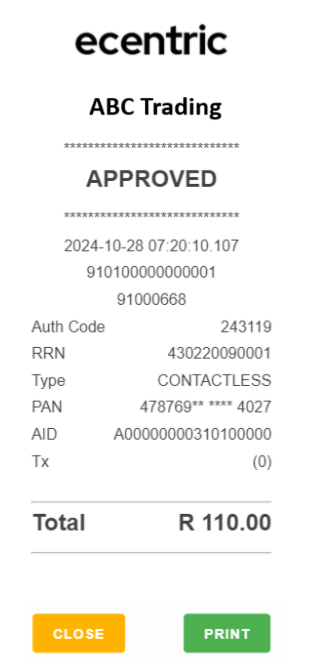
Receipt Example
Updated 5 months ago