
Sale Transaction
What is a Sale?
A sale is a transaction between two or more parties that involves the exchange of tangible or intangible goods, services, or other assets for money. In some cases, assets other than cash are paid to a seller.
In the case of the MPOS Companion API implementation the Sale transaction refers to the customer paying the goods or services received by means of tapping or inserting their bank card into the payment device.
The sale transaction is also used for purchase with cash (part of the sale is cash) and cashback (the entire sale amount is cash.)
The Sale request allows MPOS Applications to integrate card processing into their applications. To process a card payment the MPOS App must launch the Ecentric Payment App via an Android Intent call, to process the response intent data, in order to understand if the transaction succeeded of failed.
Note:An auth token must exist before a payment can be requested.
Please refer to section Retail Auth Validation
How Does a Sale Work?
The diagram below displays an example of how a Sale works by making use of the Companion App (Here after known as the MPOS App), Payment App (Here after known as the Ecentric's Payment App), Transaction Processor (Here after known as the Ecentric Server) and Acquirer.
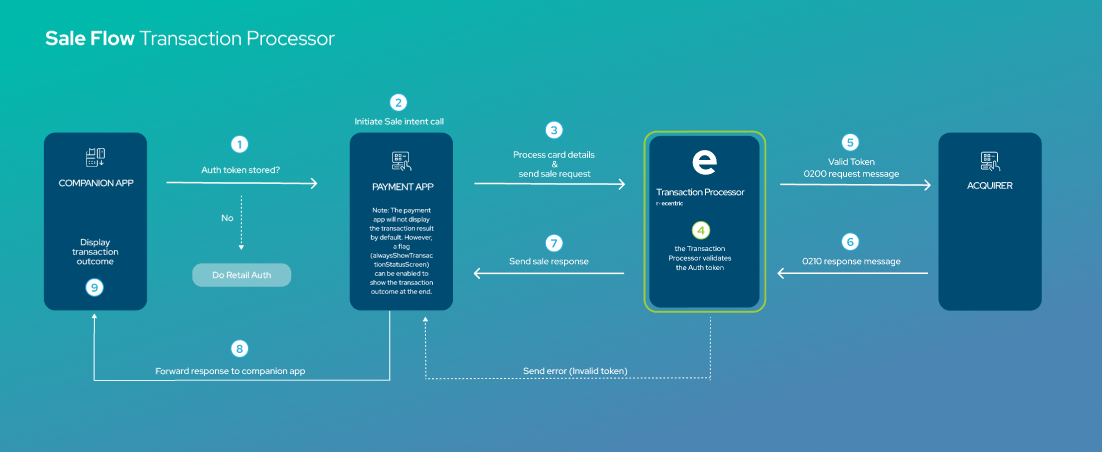
Sale Transaction Flow
Process Description:
Step 1:
When a sale transaction is initiated on the MPOS App, the first step before processing the transaction, is to check if an authentication token is available in the request.
- If there is an auth token available, then the transaction will continue as per normal.
- If there is no auth token available, then the MPOS App will need to do a
RETAIL_AUTHrequest in order to obtain a valid auth token, before aSALEtransaction can be requested.
Step 2:
The MPOS App will initiate a SALE request, the SALE request will be sent to the Ecentric Payment App.
Step 3:
The Ecentric Payment App will process the card details and forward the SALE request to Ecentric's Server.
Step 4:
The Ecentric Server will validate the auth token in the request.
NOTE: If the auth token is not validated, the Ecentric Server will return an "invalid auth token" error to the Ecentric Payment App, and the transaction will be aborted.
Step 5:
The Ecentric Server will send a financial message to the Acquirer.
Step 6:
The Acquirer will the perform the necessary checks in order to validate and process the transaction.
Once the validation of the transaction has been performed, the Acquirer will respond with a financial message to the Ecentric Server, which contains the transaction outcome.
Step 7:
The Ecentric Server will return the transaction response to the Ecentric Payment App.
Step 8:
The Ecentric Payment App will then forward the transaction outcome to the MPOS App.
Step 9:
The MPOS App will be able to display the transaction outcome to the customer.
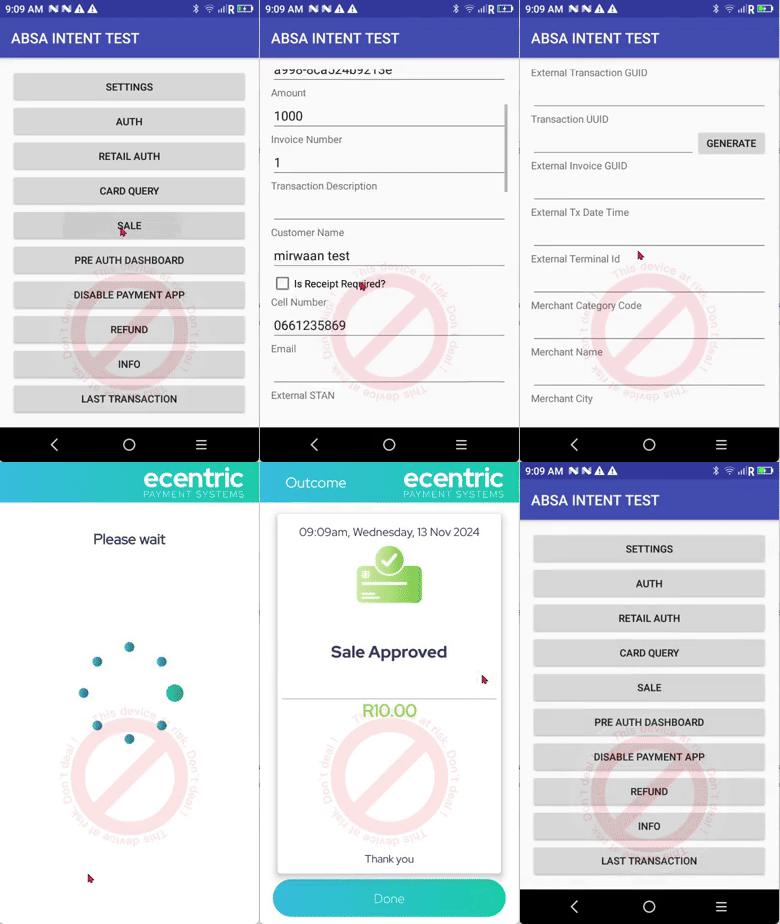
Sale Transaction Tutorial Video
Request
Sample Bundle: Sale
The following is an example of a SALE request for R10.00
"launchType": "SALE"
"merchantID": "770000000000123"
"authenticationKey": "e27b5ce6-8ba6-4746-9453-536728f7cbeb"
"transactionAmount": 1000
"launchType": "SALE"
"merchantID": "770000000000123"
"authenticationKey": "e27b5ce6-8ba6-4746-9453-536728f7cbeb"
"transactionAmount": 1000
"merchantName": "Payfacname"
"merchantCity": "Johannesburg"
"merchantRegionCode": "GP"
"merchantCountryCode": "ZA"
"merchantCategoryCode": "4891"
"additionalData": {
"subMid": "574595612358745"
"Street", "cnr Von Willich Ave &, Leonie St"
"City", "Johannesburg"
"Province", "GP"
"Country_Code", "ZA"
"Currency_Code", "710"
"Postal_Code", "0157"
}Sample Bundle: Purchase with Cash
The following is an example of a Purchase request for R10.00 and a Cash amount of R50.00
"launchType": "SALE"
"merchantID": "770000000000123"
"authenticationKey": "e27b5ce6-8ba6-4746-9453-536728f7cbeb"
"transactionAmount": 6000 // The entire amount in cents
"cashAmount": 5000 // the cash amount in cents
"launchType": "SALE"
"merchantID": "770000000000123"
"authenticationKey": "e27b5ce6-8ba6-4746-9453-536728f7cbeb"
"transactionAmount": 6000 // The entire amount in cents
"cashAmount": 5000 // the cash amount in cents
"merchantName": "Payfacname"
"merchantCity": "Johannesburg"
"merchantRegionCode": "GP"
"merchantCountryCode": "ZA"
"merchantCategoryCode": "4891"
"additionalData": {
"subMid": "574595612358745"
"Street", "cnr Von Willich Ave &, Leonie St"
"City", "Johannesburg"
"Province", "GP"
"Country_Code", "ZA"
"Currency_Code", "710"
"Postal_Code", "0157"
}Sample Bundle: Cashback
The following is an example of a Cashback request for R50.00
"launchType": "SALE"
"merchantID": "770000000000123"
"authenticationKey": "e27b5ce6-8ba6-4746-9453-536728f7cbeb"
"transactionAmount": 5000 // The entire amount in cents
"cashAmount": 5000 // The cash amount in cents
"launchType": "SALE"
"merchantID": "770000000000123"
"authenticationKey": "e27b5ce6-8ba6-4746-9453-536728f7cbeb"
"transactionAmount": 5000 // The entire amount in cents
"cashAmount": 5000 // The cash amount in cents
"merchantName": "Payfacname"
"merchantCity": "Johannesburg"
"merchantRegionCode": "GP"
"merchantCountryCode": "ZA"
"merchantCategoryCode": "4891"
"additionalData": {
"subMid": "574595612358745"
"Street": "cnr Von Willich Ave &, Leonie St"
"City": "Johannesburg"
"Province": "GP"
"Country_Code": "ZA"
"Currency_Code": "710"
"Postal_Code": "0157"
}Parameters
The following table describes the parameters of the SALE request message.
| PARAMETERS | APPLIES TO | TYPE | DESCRIPTION | EXAMPLE |
|---|---|---|---|---|
| REQUIRED | ||||
| launchType | All | STRING | Must be SALE Used for launching the Ecentric Payment App to process a payment. | SALE |
| merchantID | All | STRING | The merchant ID assigned to the merchant. The merchant ID will always be the same ID for a specific merchant. To be provided by Ecentric. | 910100000000001 |
| authenticationKey | All | STRING | The authentication token that was generated by the server on a successful retail auth call to the Ecentric Payment App. | e27b5456-8bff6-4746-94bg-367253356eb |
| transactionAmount | All | LONG | The full transaction amount to be charged in cents. This amount will include a cashAmount if it was specified. | 1000 |
| merchantName | PayFac | STRING | The store name of the sub-merchant. i.e. Payfacname * ".concat(shopName)) | 4th position i.e. "Cla*sh Melrose Arch" 8th position i.e. "Clash *Melrose Arch" 13th position i.e. "Clash Melro*se Arch" |
| merchantCity | PayFac | STRING | The city where the sub-merchant's store is located. | Johannesburg |
| merchantRegionCode | PayFac | STRING | The region code where sub-merchant’s store is located. Must be the Alpha value for the region as seen in example column. EC – Eastern Cape FS – Free State GP – Gauteng KZN – KwaZulu-Natal LP – Limpopo MP – Mpumalanga NC – Northern Cape NW – North West WC – Western Cape | GP |
| merchantCountryCode | PayFac | STRING | The country code where sub-merchant's store is located. | ZA |
| merchantCategoryCode | PayFac | STRING | The category code of the sub-merchant's. 4-digit numeric code that identifies the type of business or service a sub-merchant provides. NB: It is essential that this field is populated accurately, as incorrect MCC assignment per merchant may result in penalties. | 4891 |
| OPTIONAL | ||||
| merchantName | NON PayFac | STRING ALPHANUMERIC WITH SPACES | The name of the merchant that requested the transaction, as stored at the bank. | Merchant A |
| cashAmount | All | LONG | The amount of cash that was withdrawn in cents. The cashAmount will be included in the transacionAmount. | 500 |
| transactionDescription | All | STRING ALPHANUMERIC WITH SPACES | Reference description for the merchant’s records. If transactionDescription field is left blank in the request, Ecentric will automatically generate/populate the field with the RRN value for the transaction. | 3rd party app desc |
| transactionReferenceNo | All | STRING ALPHANUMERIC | Reference number field that also appears in a merchant portal when available. | ref#123456 |
| cellNumberToSMSReceipt | All | STRING NUMERIC | 10-digit cell phone number for receipt SMS destination. Can be blank. NOTE: If isReceiptRequired is true then this is a mandatory field. | 0721234567 |
| emailAddressToSendReceipt | All | ALPHANUMERIC | Valid email address for receipt email destination. Can be blank. NOTE: If isReceiptRequired is true then this is a mandatory field. | [email protected] |
| isReceiptRequired | All | BOOLEAN | If set to true, at least one of the receipt parameters above needs to be set. If set to false the user will not be prompted to send a receipt after payment using the Ecentric Payment App. NOTE: According to VISA and Mastercard requirements, this must always be set to true unless the app developer is providing an alternative means to send a receipt | true |
| alwaysShowTransactionStatusScreen | All | BOOLEAN | Once the Ecentric Payment App has processed a transaction there is a status screen that shows the success/failure of processing. Set this flag to true if you would like this displayed otherwise false to hide it. Default is false. | true |
| externalSTAN | All | STRING NUMERIC | A systems trace number generated by some 3rd party ERP systems. | 123456 |
| externalRRN | All | STRING ALPHANUMERIC | A RRN generated by some 3rd party ERP systems. If externalRRN field is left blank in the request, Ecentric will automatically generate an externalRRN for the transaction. | ABCDEF123456 |
| externalTransactionGUID | All | STRING ALPHANUMERIC | A GUID that identifies a specific transaction generated by 3rd party ERP systems. | 2fdca02f-3cbe-4e8c-82ad-86a1a16b72e8 |
| externalInvoiceGUID | All | STRING ALPHANUMERIC | A GUID that identifies a particular invoice that may appear on more than one transaction. | 2fdca02f-3cbe-4e8c-82ad-86a1a16b72e9 |
| transactionUuid | All | STRING ALPHANUMERIC | Unique ID of transaction. If transactionUuid field is left blank in the request, Ecentric will automatically generate a transactionUuid for the transaction. | bdf9d0af-17b3-48ca-8a0b-37dc52bf49bc |
| externalTransactionDateTime | All | STRING | A date and time the transaction was generated on the 3rd party ERP systems. Has the format of “yyyy-MM-dd'T'HH:mm:ss” | 2017-04-28T09:30:00 |
| externalTerminalId | All | STRING NUMERIC | A terminal identifier for device configured on the 3rd party ERP system. If externalTerminalId field is left blank in the request, Ecentric will automatically send the payment device TerminalId in the externalTerminalId field for the transaction. | 98100010 |
| latitude | All | STRING NUMERIC | A geolocation identifier indicating the latitude position of the device. | -28.1619942 |
| longitude | All | STRING NUMERIC | A geolocation identifier indicating the longitude position of the device. | 30.2350981 |
| accuracy | All | STRING NUMERIC | A accuracy indicator of the geolocation. | |
| additionalData | All | OBJECT | See Additional Parameters section for the AdditionalData Object. | N/A |
Additional Parameters
Note
- The 'additionalData' object allows the MPOS App to pass data fields of any type to the server.
- This 'additionalData' object is NOT interrogated or used by the Ecentric Payment App itself, but only passes the object through to the server.
AdditionalData Object
The following tables describes the additional parameters of the SALE request message.
| PARAMETERS | APPLIES TO | TYPE | SIZE(MAX) | DESCRIPTION | EXAMPLE |
|---|---|---|---|---|---|
| REQUIRED | |||||
| merchantInfo | PayFac | OBJECT | N/A | See parameters under MerchantInfo Object. example included in PayFac Sample Code SALE Request | N/A |
| subMid | PayFac | NUMERIC STRING | 15 | The unique ID for each sub merchant. Determined by the PayFac. example included in PayFac Sample Code SALE Request | 574595612358745 |
| Tokenization | All | OBJECT | N/A | See parameters under Tokenization Object. example included in All and PayFac Sample Code SALE Request | N/A |
| extendedTrxType | All | NUMERIC STRING | 12 | The unique 4 digit number configured on Postilion switch, which 3rd party integrators can use to route transactions to a different acquirer. Provided by Ecentric. example included in All and PayFac Sample Code SALE Request | 1234 |
MerchantInfo Object
| PARAMETERS | APPLIES TO | TYPE | SIZE(MAX) | DESCRIPTION | EXAMPLE |
|---|---|---|---|---|---|
| Street | PayFac | STRING ALPHANUMERIC WITH SPACES | 255 | The unique street address of the sub-merchant. | cnr Von Willich Ave &, Leonie St |
| City | PayFac | STRING ALPHANUMERIC | 48 | The city where the sub-merchant's store is located. | Johannesburg |
| Province | PayFac | STRING ALPHANUMERIC | 2 | The province where the sub-merchant's store is located. Must be the Alpha value for the province as seen in example column. EC – Eastern Cape FS – Free State GP – Gauteng KZN – KwaZulu-Natal LP – Limpopo MP – Mpumalanga NC – Northern Cape NW – North West WC – Western Cape | GP |
| Country_Code | PayFac | STRING NUMERIC | 2 | The country code where the sub-merchant's store is located. | ZA |
| Currency_Code | PayFac | STRING NUMERIC | 3 | The currency code that the sub-merchant uses to define the transaction currency. Currency code based on the ISO 8583 standard. | 710 |
| Postal_Code | PayFac | STRING NUMERIC | 4 | The postal code where the sub-merchant's store is located. | 0157 |
Tokenization Object
| PARAMETERS | APPLIES TO | TYPE | SIZE(MAX) | DESCRIPTION | EXAMPLE |
|---|---|---|---|---|---|
| MerchantUserID | All | NUMERIC STRING | 16 | Creates the ability to tokenize a customer card, in order for a PSP to perform subsequent transaction on the terminal as another means of securing customer information during transaction processing. | 1 |
Sample Code
The following code needs to be implemented by the MPOS Application in order to invoke the Ecentric Payment App to initiate a SALE request message.
*See Sample Code SALE Response for the intentLauncher function
private void doSale() {
    Intent intent = new Intent();
   	intent.setClassName("com.ecentric.ecentricpay", "com.ecentric.ecentricpay.MainActivity");
    Bundle dataBundle = new Bundle();
    dataBundle.putString("launchType", "SALE");
  	dataBundle.putString("merchantID", "910100000000001")
    dataBundle.putString("authenticationKey", "received_authenticationKey");
    dataBundle.putLong("transactionAmount", 1000); // amount in cents

		JSONObject additionalData = new JSONObject();
		try {

      // Add extendedTrxType
			additionalData.put("extendedTrxType", "6705");

      // Create a Tokenization object
 			JSONObject tokenization = new JSONObject();
			tokenization.put("MerchantUserID", "1");
			additionalData.put("Tokenization", tokenization);

			dataBundle.putString("additionalData", additionalData.toString());
		} catch (JSONException e) {
			e.printStackTrace();
		}

    intent.putExtra("ecentricBundle", dataBundle);
    try {
        intentLauncher.launch(intent);
    } catch (Exception e) {
        Log.e(TAG, "Error launching intent: " + e);
    }
private void doSale() {
Intent intent = new Intent();
intent.setClassName("com.ecentric.ecentricpay", "com.ecentric.ecentricpay.MainActivity");
Bundle dataBundle = new Bundle();
dataBundle.putString("launchType", "SALE");
dataBundle.putString("merchantID", "910100000000001")
dataBundle.putString("authenticationKey", "received_authenticationKey");
dataBundle.putString("merchantName", "Cla*sh Melrose Arch");
dataBundle.putString("merchantCity", "Johannesburg");
dataBundle.putString("merchantRegionCode", "GP"
dataBundle.putString("merchantCountryCode", "ZA");
dataBundle.putString("merchantCategoryCode", "4891");
dataBundle.putLong("transactionAmount", 1000); // amount in cents
JSONObject additionalData = new JSONObject();
try {
// Add subMid field
additionalData.put("subMid", "574595612358745");
// Add extendedTrxType
additionalData.put("extendedTrxType", "6705");
// Create a merchantInfo object
JSONObject merchantInfo = new JSONObject();
merchantInfo.put("Street", "cnr Von Willich Ave &, Leonie St);
merchantInfo.put("City", "Johannesburg");
merchantInfo.put("Province", "GP");
merchantInfo.put("Country_Code", "ZA");
merchantInfo.put("Currency_Code", "710");
merchantInfo.put("Postal_Code", "0157");
additionalData.put("Merchant_Info", merchantInfo);
// Create a Tokenization object
JSONObject tokenization = new JSONObject();
tokenization.put("MerchantUserID", "1");
additionalData.put("Tokenization", tokenization);
dataBundle.putString("additionalData", additionalData.toString());
} catch (JSONException e) {
e.printStackTrace();
}
intent.putExtra("ecentricBundle", dataBundle);
try {
intentLauncher.launch(intent);
} catch (Exception e) {
Log.e(TAG, "Error launching intent: " + e);
}Response
NoteResult of the transaction:
- The resultCode will indicate the result of the sale request:
01 -> Successful
02 -> Declined
03 -> Aborted
04 -> Error
Sample Bundle
The following is an example of a SALE response bundle the MPOS Application will receive.
    "adjustAmount": 10000,
    "appVersion": "2.2.0",
    "buildInfo": "com.ecentric.ecentricpay-DEBUG-Ecentric-[Ecentric_UAT]",
    "cashAmount": 0,
    "isReceiptDataAvailable": true,
    "launchType": "SALE",
    "merchantID": "910100000000001",
    "outstandingAmount": 0,
    "posId": "",
    "receiptBundle": { Please see receipt bundle section
    },
    "resultCode": "01",
    "resultDescription": "APPROVED",
    "serialNumber": "F31P606437P1024",
    "transactionAmount": 10000,
    "transactionLinkIdentifier": "1234567890123456789012",
    "transactionUuid": "d3d61b97-89b1-4543-8a43-b9c5db34af5f",
    "txType": "DEBIT"
Parameters
The following table describes the parameters of the SALE response message.
| PARAMETERS | TYPE | DESCRIPTION | EXAMPLE |
|---|---|---|---|
| adjustAmount | LONG | Amount in cents to adjust the transactionAmount after the transaction, can be positive or negative.
| 10000 |
| appVersion | STRING | The software version currently running on the Ecentric Payment App. | 2.0.0 |
| buildInfo | STRING | Metadata that identifies the specific software build running on the payment device. | com.ecentric.ecentricpay-DEBUG-Ecentric-[Ecentric_UAT] |
| cashAmount | LONG | Approved cashAmount. | 500 |
| isReceiptDataAvailable | STRING | Boolean indicating whether a receiptBundle object is available. Will always be included for approved or declined transactions. | true |
| launchType | STRING | Echo of the launchType used to launch the Ecentric Payment App. | SALE |
| merchantID | STRING | Echo of the merchantID used in the request. | 910100000000001 |
| outstandingAmount | LONG | transactionAmount + adjustAmount Tipping example: Tip of R1.50 to R10.00:
| 0 |
| posId | STRING | N/A for Companion API Integrations | |
| receiptBundle | STRING | Consists of a sub-bundle of server parameters that can be used by the partner application to create a receipt. | See Receipt Bundle Section |
| resultCode | STRING | Represents the final outcome of the transaction. ● 01: SUCCESSFUL | 01 |
| resultDescription | STRING | A user readable representation of the above resultCode i.e. Approved for resultCode 01. If the bank or switch approves or declines the transaction, the response description is included in this field. | APPROVED |
| serialNumber | STRING | The serial number for the device that was used for the RETAIL_AUTH intent call. | PC05P2CG10036 |
| transactionAmount | LONG | Approved total transactionAmount. | 1000 |
| transactionLinkIdentifier | STRING | Mastercard Only The transactionLinkIdentifier is returned in the response message. The POS is responsible for storing this value if unmatched refunds need to be processed. Please see Refund Transaction for more information. | 1234567890123456789012 |
| transactionUuid | STRING | Echo of the Unique ID of a transaction. | bdf9d0af-17b3-48ca-8a0b-37dc52bf49bc |
| txType | STRING | Transaction type | DEBIT |
Sample Code
The following code needs to be implemented by the MPOS Application to decode the SALE transaction outcome and resume the MPOS App flow accordingly.
When the response is returned the calling app needs to override the onActivityResult() method and can be done as follows:
private final ActivityResultLauncher<Intent> intentLauncher = registerForActivityResult(
       new ActivityResultContracts.StartActivityForResult(),
       result -> {
           if (result.getResultCode() == Activity.RESULT_OK) {
               Intent data = result.getData();
               if (data != null) {
                   Bundle responseBundle = new Bundle(data.getBundleExtra("ecentricApplicationResponse"));
                   String launchType = responseBundle.getString("launchType");
                   String resultCode = responseBundle.getString("resultCode");
                 		// Determine if the transaction was successfully executed using returned resultCode
                   Boolean success = false;
                   if (resultCode != null && (resultCode.matches("00") || resultCode.matches("01"))) {
                       success = true;
                   }

                   if (responseBundle.get("errorBundle") != null) {
                       Bundle errorBundle = new Bundle(responseBundle.getBundle("errorBundle"));
                   }
               }
           } else {
               Log.e(TAG, "Received error resultCode: " + result.getResultCode());
           }
       }
);
Error Handling
The following table contains typical errors that might occur and how to handle these errors:
| ERROR MESSAGE | SOLUTION |
|---|---|
| Incorrect merchantID | Ensure that you have entered the correct merchantID. |
| authenticationKey is invalid | When your authenticationKey is invalid, you will receive an error message indicating that the authenticationKey is invalid, a RETAIL_AUTH request needs to be done to obtain a valid authenticationKey. |
| transactionAmount not present | Ensure that you are sending through a valid transactionAmount. |
| Duplicate UUID | Ensure that a unique UUID is sent through for every new sale transaction. |
Sample Bundle
The following is an example of a SALE ERROR response bundle that the MPOS Application will receive.
"resultDescription": "ABORTED",
"errorBundle": {
    "description": "ERROR",
    "reference": "",
    "errorType": "TRANSACTION",
    "message": "Transaction cancelled by user"
  },
 "buildInfo": "Ecentric_DEBUG_Ecentric_INT",
 "isReceiptDataAvailable": false,
 "resultCode": "03",
 "merchantID": "910100000000001",
 "serialNumber": "PC05P2CG10036",
 "launchType": "SALE",
 "cashAmount": 0,
 "appVersion": "1.9.8",
 "transactionAmount": 1000
Updated 5 months ago